Your server
Everything you can do with your server from the dashboard: the console, plugins and mods, backups, files and settings.
Start, stop and the console#
Buttons at the top of your server's page:
- ▶ Start: starts the server. It's ready when the status says Running.
- ⟳ Restart: stops and starts it again (needed after most config and plugin changes).
- ■ Stop: saves the world and stops cleanly.
- Kill: force-stops a frozen server. You may lose unsaved progress.

The Console tab shows the live server log, with warnings in yellow and errors in red. Type commands in the box at the bottom (no / needed) and press Enter; use ↑/↓ for command history.
Quick buttons above the command box:
| Button | Does |
|---|---|
| Whitelist me | whitelists your Minecraft name (set it in Account) |
| OP me | whitelists you and gives you operator rights in-game |
| OP player… | op any player name |
| Creative / Survival / Day / Clear weather | the usual shortcuts |
| Players / Plugins / TPS / Version | quick checks |
The header also shows how much memory the server is using right now next to its plan limit, and how much disk it uses.
Add plugins#
Browse and install (easiest)#
- Open the Plugins tab (Mods on Fabric, Forge and NeoForge) and click 🔎 Browse plugins.
- Search for a plugin. Tree Host searches Modrinth and only shows plugins that work on your server's type and version.
- Click Install, then Restart your server to load it.

The Tree Host staff plugin#
Paper, Spigot, Purpur and Folia servers include TreeHostStaff (🔒 *Required by Tree Host*). It lets official Tree Host staff join to help you, even when your server is whitelisted, and gives them a gold ✔ STAFF badge so your players know who they are. It's tiny, has no commands and doesn't change your game. It can't be removed or turned off.
Upload your own#
- Open the Plugins tab.
- Drag your
.jaronto the drop area, or click browse. - Restart the server.
The list shows each plugin's name and version. Disable keeps the jar but stops it loading; Delete removes it.
Upload straight from your build (plugin developers)#
Build your plugin in your IDE and it lands on your server automatically: the old version is replaced and the server restarts.
- Click Account → API tokens, name the token (e.g. "Laptop") and click Create token.
- Copy the token now. It starts with
th_and is only shown once. - Save it as the
TREEHOST_TOKENenvironment variable on your computer:Windows (PowerShell), then restart your IDE:
setx TREEHOST_TOKEN "th_your_token_here"macOS / Linux: add this to
~/.zshrcor~/.bashrc:export TREEHOST_TOKEN="th_your_token_here" - On the server's Plugins tab, open Developers: upload your plugin straight from your build. Copy the Gradle task into your
build.gradle.ktsand run./gradlew deployServer, or use the curl / PowerShell command aftermvn package.
Warning: a token can change your servers. Keep it out of your code and Git. Delete it in Account if it leaks.
Backups#
The Backups tab keeps copies of your worlds (overworld, nether, end) and your plugins/ folder, including plugin configs and data.

- Back up now: give it a name like *before the 1.21 update* and click the button. It works while the server is running: the world is saved first.
- Automatic backups: pick *every 6 hours*, *every 12 hours* or *once a day*. The newest 3 automatic backups are kept. You can keep up to 5 backups you made yourself.
- Restore: stop the server, then click Restore on a backup. Your current world and
plugins/folder are replaced by the backup's copies.
Warning: restoring throws away anything changed since that backup. Make a fresh backup first if you might want the current state back.
Tip: backups are a safety net, not a vault. Download anything you can't lose from the Files tab now and then.
Edit files#
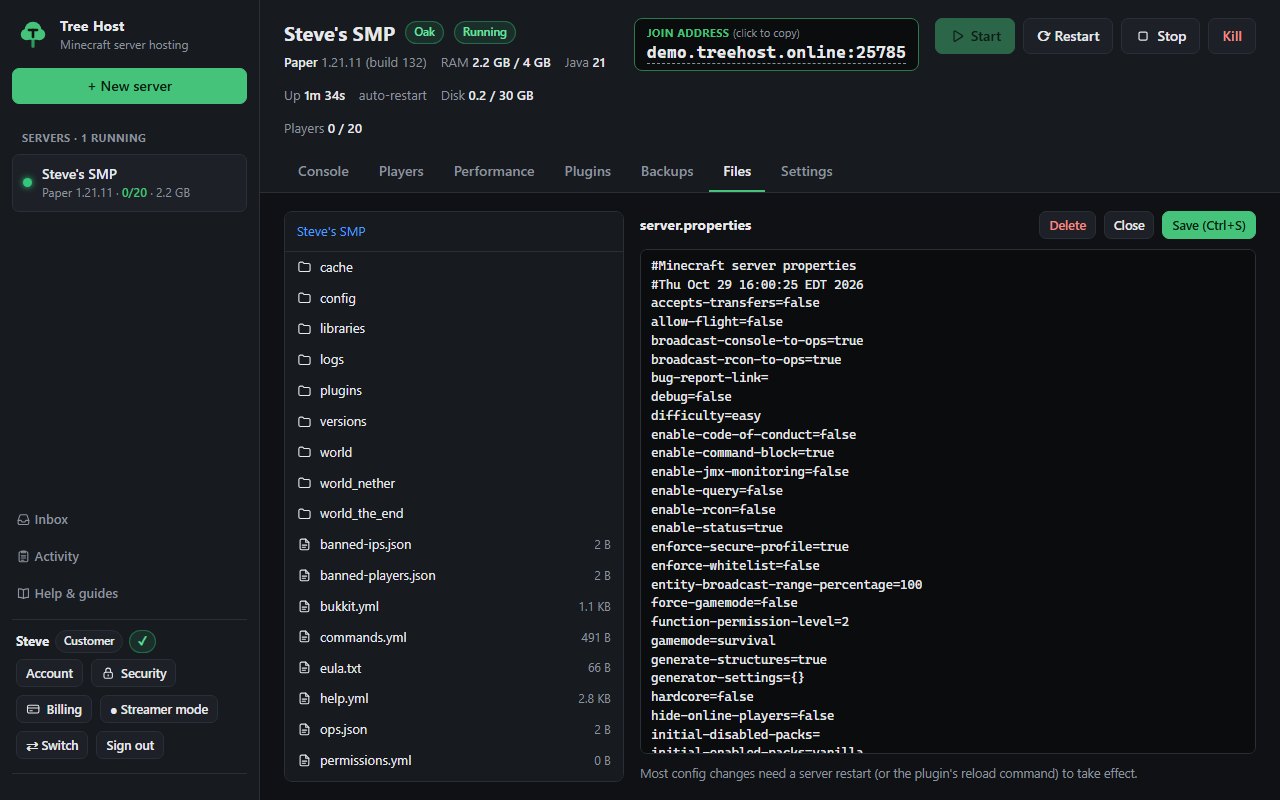
The Files tab shows everything in your server's folder. Click a file to edit it, then Save (or Ctrl+S). The buttons at the top open common files (server.properties, bukkit.yml, spigot.yml, Paper configs…). Most files only exist after the server has started once, and most changes need a Restart.
Settings#
The Settings tab:
- General: the server's name, and:
- Start automatically when Tree Host restarts (after maintenance).
- Restart after a crash: waits 5 seconds and starts it again. It gives up after 3 crashes in 10 minutes so a broken plugin can't crash-loop forever.
- Notes: a note to yourself shown at the top of the server.
- Server software: switch type, version or build. The new jar is downloaded on the next start; your world and plugins are kept.
- Java: leave on Automatic. Tree Host picks the right Java for the version.
- Game settings: the common
server.propertiesoptions (game mode, difficulty, whitelist, view distance, seed…). - Danger zone: Reset worlds gives you a fresh world (plugins and configs are kept); Delete server removes the server for good. The plan stays, so you can create a new server with it.
Memory, CPU, disk and the port come from your plan and can't be changed in Settings.
Warning: updating to a newer Minecraft version is usually safe (make a backup first). Going back to an older version can break your world.
Modpacks#
For individual mods and client setup, see Fabric and mods or Forge or NeoForge?. For a full walkthrough of modpacks, see Install a modpack.
+ New server → Install a modpack instead lets you search Fabric, Forge and NeoForge modpacks from Modrinth and CurseForge (popular ones show first). Pick one, choose the version and your plan, and Tree Host creates a server with the right Minecraft version and loader and downloads every mod for you (watch it in the console). Modpacks usually need at least 4 GB of memory.
Share your server with friends#
Settings → People with access → type a friend's Tree Host username or email and pick a role:
| Role | Can do |
|---|---|
| Co-owner | Everything except deleting the server, resetting worlds or changing its version |
| Helper | Console, start / stop / restart, commands |
| Viewer | Watch the console and status |

They get a message in their inbox and see the server in their list. Billing always stays with you.
Show your server off#
The public server list#
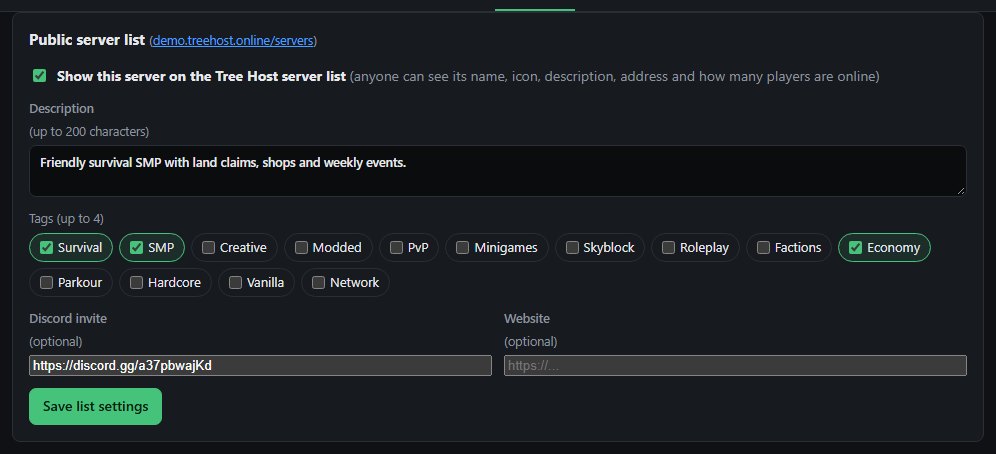
Settings → Public server list → tick Show this server on the Tree Host server list, write a short description, pick up to 4 tags and add your Discord or website if you like, then Save list settings.
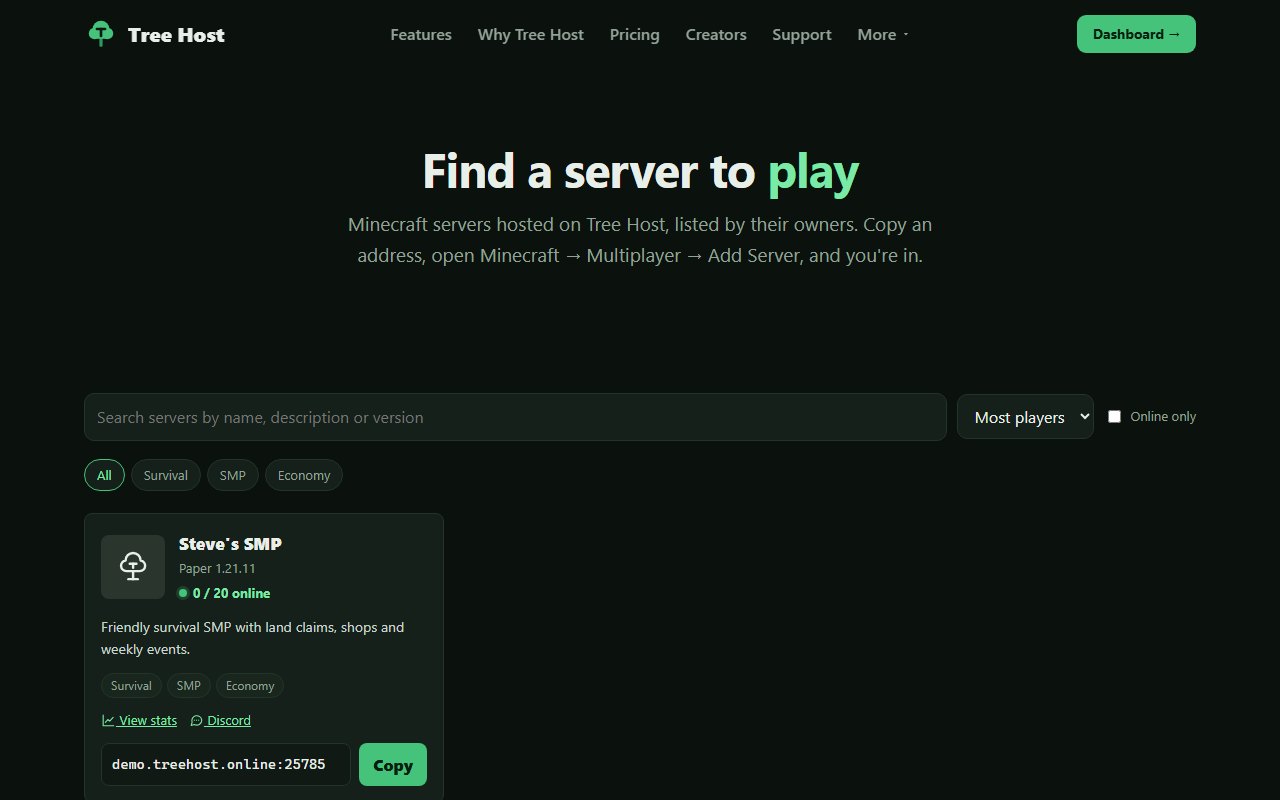
Your server then appears on the server list for anyone looking for a server to play: its name, icon, description, address and how many players are online. Untick it to take it off again.
A public stats page#
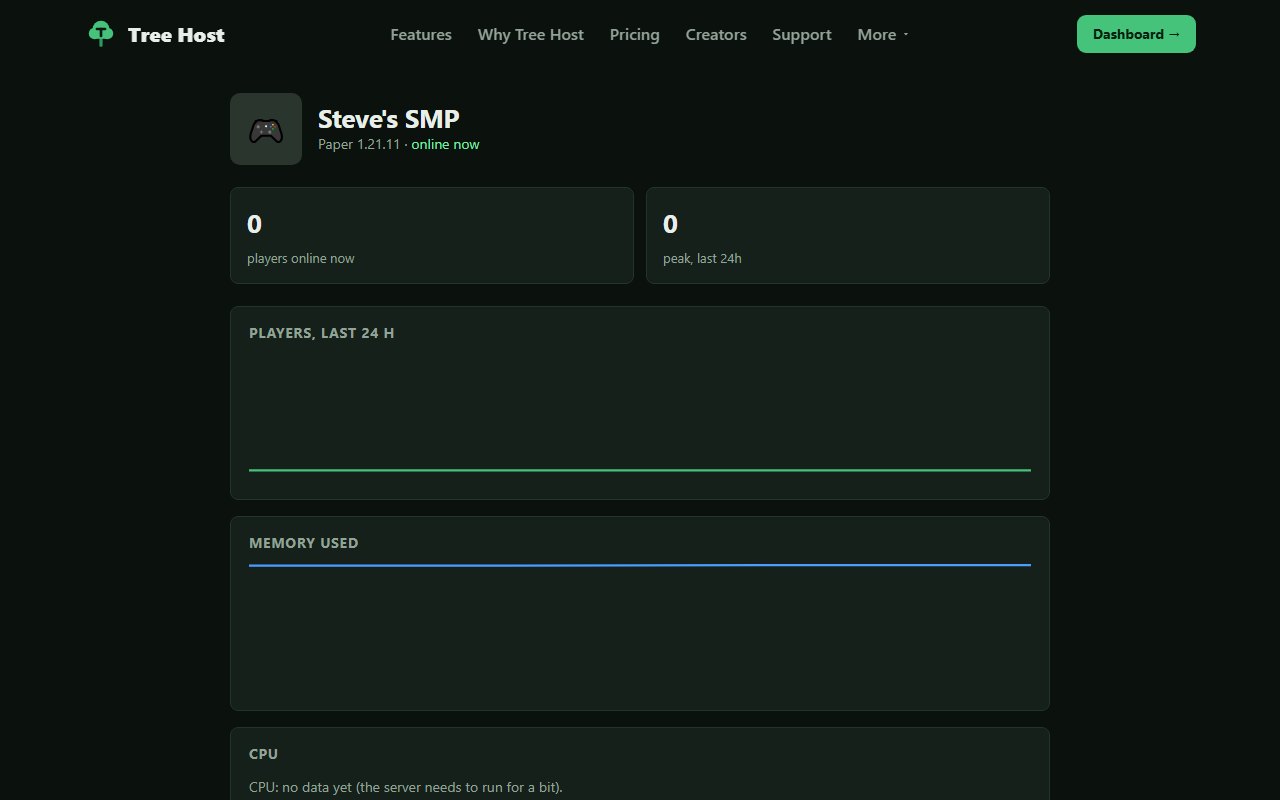
Settings → Public stats page → Turn on and get a link. Anyone with the link sees your server's name and icon, the players online now, the most players in the last 24 hours, and memory and CPU over the day. Addresses, settings and files are never shown. Copy link to share it; Turn off stops the link working right away, and turning it on again makes a new one.

If the server is also on the public server list, its card there gets a View stats button.
Sleep when empty#
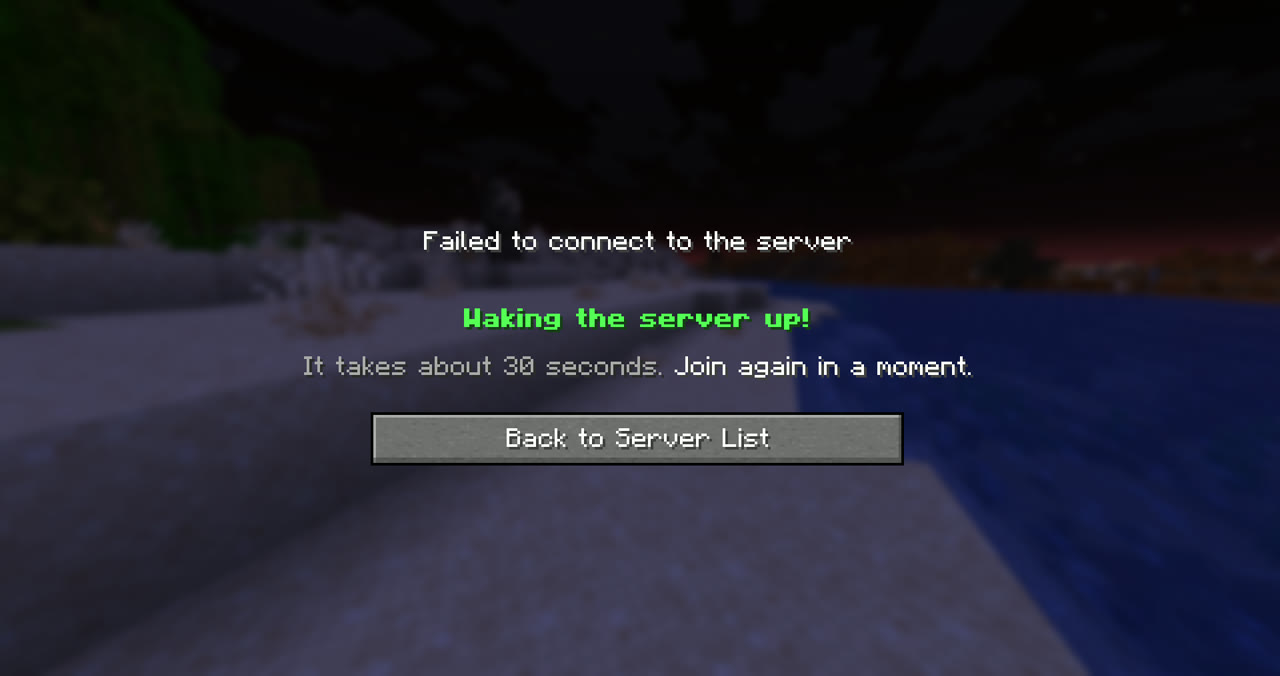
Settings → Sleep when empty: when nobody has been online for the time you pick, the server goes to sleep. The server list then shows Zz Sleeping · Join to wake it up! The first player to join wakes it up (about 30 seconds), then everyone joins normally. Your world and settings stay exactly as they are.

This is what the first player sees while the server wakes up. They join again about 30 seconds later:
Scheduled tasks#
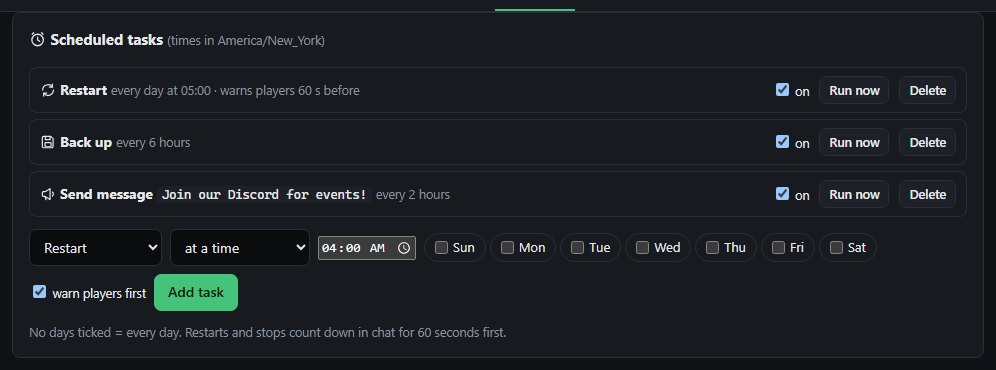
Settings → Scheduled tasks runs things for you at set times (in your time zone) or every few hours: restart, stop, start, back up, run a command, or send a message to everyone online. Restarts and stops count down in chat for 60 seconds first. Run now tries a task straight away.
Bedrock players (crossplay)#
On Paper, Purpur, Folia and Spigot (1.16.5 and newer): Settings → Bedrock players → Turn on. Tree Host installs and sets up Geyser and Floodgate, so phone, tablet, console and Windows players join with the same address and port as Java players, without a Java account. Restart the server after turning it on.

Performance#
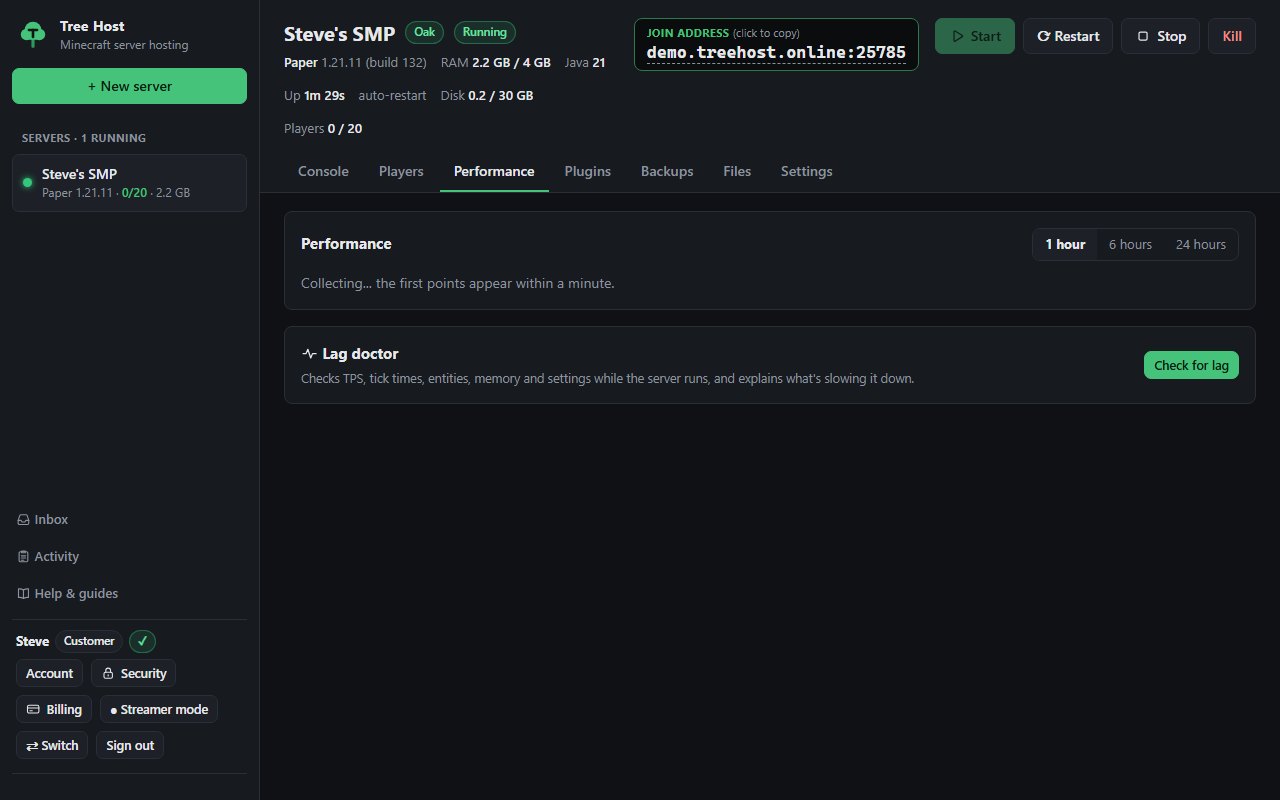
The Performance tab shows memory, CPU and players online over the last hour, 6 hours or 24 hours, one point a minute while the server runs. Hover a chart to see exact values.
When something goes wrong: the crash doctor#
If your server crashes, or a plugin breaks while it starts, a blue box at the top of the server explains what happened in plain words (for example "ShopGUI needs Vault" or "Something needs a newer Java") with buttons to fix it.
Download or upload a world#
Backups → World: Download world gives you a .zip of the world (it saves first if the server is running). Upload a world replaces the world with a .zip of a world folder, from single player or another host. Stop the server first; the current world is backed up before it's replaced.
MOTD (your server-list message)#
Settings → MOTD sets the two lines under your server's name in Minecraft's server list.
- Click a color or style, or type & codes: &6 gold, &a green, &l bold, &o italic, &n underline, &m strikethrough, &k scrambled, &r reset. &#ff8800 is any color you like (Minecraft 1.16+).
- {name} puts in your server's name. Try the Templates.
- + Add animation frame makes it animated: players see the next frame each time they refresh their server list.
- The preview shows exactly how it will look.
On Paper, Purpur, Folia and Spigot, changes (and animation and hex colors) show right away. Other server types use the first frame with the classic 16 colors, after a restart.
Proxy networks (Velocity, BungeeCord, Waterfall)#
For a full walkthrough and connection checks, see Set up a Velocity network.
A proxy lets players join one address and move between your servers with /server name.
- Create your servers (Paper or Purpur work best) and a proxy (Velocity recommended).
- Open the proxy → Settings → Network. Tick the servers to connect and pick where players start.
- Click Save network and confirm the restart prompt for running servers. Start any selected servers that are stopped.
Tree Host sets up both sides for you: the proxy's server list, and each server's forwarding, so player names, skins and UUIDs come through. Servers in a network only accept players coming through your proxy. Vanilla and Fabric servers can't go behind a proxy.
Server icon#
Give your server its own picture in Minecraft's server list (Multiplayer):
- Open your server → Settings → Server icon → Upload icon.
- Pick any picture (PNG, JPEG, WebP or GIF). We crop it to a square and make it 64×64 pixels, the size Minecraft needs. The preview shows how it will look.
- Restart the server. Players see the new icon the next time they refresh their server list.
Tip: simple, bold pictures look best at 64×64. Pixel art stays crisp.
To go back to the default, click Remove and restart.
Limits of your plan#
- Memory: the server can use up to the plan's memory. If it needs more, it stops with *"ran out of memory"* in the console. Remove heavy plugins or mods, lower the view distance, or buy a bigger plan.
- CPU: the server shares the machine fairly; your plan's cores are reserved for you.
- Disk: if your server uses more disk than the plan allows, it is stopped and can't start until you delete old worlds, logs or files.